Welcome to the TEAMS Student Portal
Welcome to the TEAMS Student Portal.
The Student Portal provides you with convenient access to your academic and administrative information, helping you stay organised and informed throughout your studies. From a single location, you can review your enrolments, monitor attendance, track fees, and receive important updates from your college.
The portal is organised into clearly defined sections, each supporting a specific aspect of your student journey. By navigating these sections, you can easily monitor your progress and manage your course requirements effectively.Below is an overview of the key areas within the Student Portal. You can access each section to explore its features in more detail:
- Log in to Student Portal
- Dashboard Overview
- Enrolments
- Enrolment Details
- Subjects
- Financials
- Communications
- Notifications
- Profile & Settings
Accessing the Student Portal
To access the Student Portal, use the login details provided by your college.
Open your portal link (for example: students-yourcollege.rtoteams.com.au), then enter your username and password. Your username will typically be your email address or student ID.
For security purposes, you will be required to enter a one-time verification code (OTP) sent to your registered email address. Once verified, you will be securely logged in and directed to your dashboard.
Student Dashboard Overview
The dashboard is your central hub within the Student Portal.
It provides a summary of your current study status, including attendance, enrolment progress, and any outstanding fees. Your enrolments are categorised into In Progress, Upcoming, and Completed, allowing you to quickly understand your academic position.
From the dashboard, you can also access notifications, profile settings, and other key features.
Each application includes key details such as student name and current status. Selecting an application will display further information to support your review and next steps.
Understanding Your Enrolments
The Enrolments section displays all courses linked to your student profile.
Your courses are organised into the following categories:
- In Progress – Courses you are currently undertaking
- Upcoming – Courses scheduled to commence
- Completed – Courses you have finished
Each enrolment is presented as a tile showing key information such as program name, code, duration, and progress. Selecting an enrolment will open a detailed view of your course.
Enrolment Details
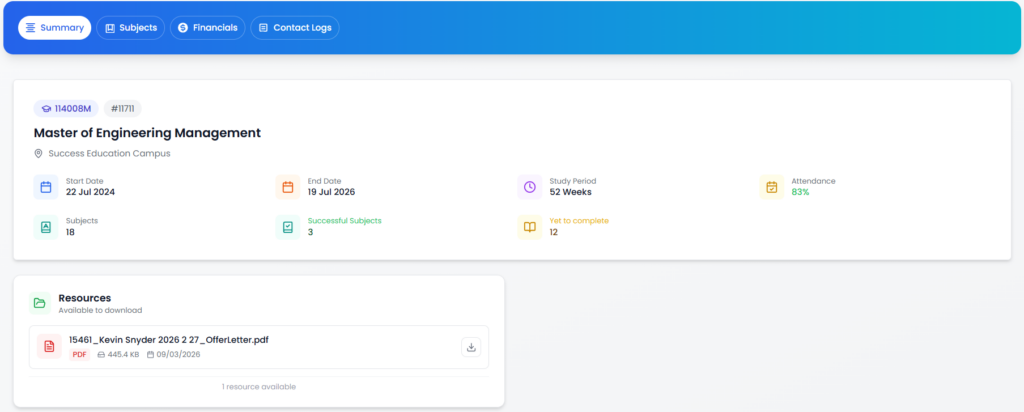
Within an enrolment, you can view a comprehensive overview of your course. This includes your enrolment number, campus, study period, attendance, and subject progression. The layout is designed to provide clear visibility of your academic progress.
Information is organised into the following tabs:
Enrolment Details
General course information
Subjects
Units included in your enrolment
Financials
Fees, invoices, and payments
Communications
Messages and updates from your college
Notifications
The Notifications feature ensures you remain informed of important updates.
Accessible via the bell icon, this section displays alerts such as system updates, request statuses, and other relevant notifications. Regularly reviewing this section will help you stay up to date.
Profile & Settings
The Profile section allows you to manage your personal and account information.
You can review and update your personal and contact details, change your password, and access additional account-related features where applicable. Keeping this information accurate is important for effective communication with your college.
TRANSACTION GUIDES
Viewing Your Subjects
To view your subjects, open your enrolment from the dashboard and navigate to the Subjects tab.
This section lists all units included in your course and allows you to track your progress within each subject.
Checking Your Attendance
Your attendance can be viewed from both the dashboard and within individual enrolments.
The attendance percentage reflects your participation in scheduled classes. Monitoring your attendance regularly is essential to ensure you meet course requirements.
Viewing Fees and Invoices
To access your financial information, open your enrolment and select the Financials tab.
Here, you can review your fees, invoices, and payment status. This helps you stay informed of any outstanding balances and manage your financial commitments.
Accessing Communications
All communication from your college is available within the Communications tab of your enrolment.
This includes messages, updates, and important notices, ensuring you have a centralised record of all correspondence.
Checking Notifications
To review notifications, select the bell icon from the main screen.
This will display recent alerts and updates related to your account. Checking this section regularly ensures you do not miss any important information or required actions.