
Welcome to the TEAMS Student App
The TEAMS Student App is designed to support your learning experience by giving you convenient access to your study information anytime, anywhere.
Using your mobile device, you can manage your enrolments, monitor your attendance, review your financials, submit assessments, and stay informed through important updates from your college.
Once logged in, you will be able to navigate through clearly structured sections, each designed to help you quickly locate and manage key aspects of your studies.
Key Sections of the Student App
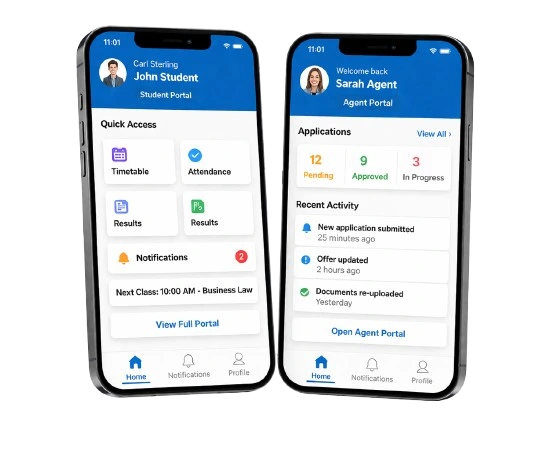
The app includes the following main areas:
- Logging into the Student App
- Dashboard Overview
- Managing Your Enrolments
- Subjects and Assessments
- Financials
- Communications
- Notifications
Each section provides clear guidance and, where required, step-by-step instructions to assist you.
Dashboard Overview
Upon logging in, you will be directed to the dashboard, which serves as your central overview.
Each enrolment is displayed as a tile, providing key details such as the program name, duration, and progress.
Selecting an enrolment tile will take you to a detailed view where you can access your subjects, financial records, and communication history.
From the dashboard, you can:
- View your current attendance percentage
- Review a summary of your financial status, including any outstanding fees
- Monitor your overall academic progress
Your enrolments are grouped into the following categories:
- In Progress – Programs you are currently undertaking
- Upcoming – Programs scheduled to commence
- Completed – Programs you have successfully finished
Managing Your Enrolments
The Enrolments section allows you to manage all your study programs in one place.
Each enrolment tile provides a concise overview, including:
- Program name and code
- Course duration
- Overall progress
When you open an enrolment, your information is organised into clearly defined tabs, allowing you to easily navigate between:
- Enrolment details
- Subjects
- Financials
- Communications
This structured approach ensures you can access all relevant information without needing to move between multiple areas of the app.
How to Log in to the Student App
To access the Student App:
- Open the Student App on your mobile device
- Enter your username and password
- Select Sign In
- Enter the 4-digit One-Time Password (OTP) sent to your registered email address
- Complete verification
Once verified, you will be redirected to your dashboard.
If you experience any difficulties, please contact your college for support.
How to View Your Enrolment Details
To access detailed information about your course:
- From the dashboard, locate your enrolment under the relevant category
- Select the enrolment tile
You will be able to view:
- Study period details
- Attendance information
- Overall progress
Use the tabs at the bottom of the screen to navigate between:
- Enrolment details
- Subjects
- Financials
- Communications
How to Submit an Assessment
You can submit your assessments directly through the app by following these steps:
- Open the app and go to your dashboard
- Select your enrolment
- Navigate to the Subjects tab
- Choose the relevant subject
- Locate the assessment task and select Submit
- Upload your file and confirm submission
Once submitted, your assessment will be recorded and made available for review.